Pilih jenis perangkat yang Anda gunakan:
ITS provides internet services at the Sukolilo Campus, Manyar Campus, and Cokroaminoto Campus. As a student, you can access the internet using myITS-WiFi SSID at these three locations. Additionally, if you are at an institution that provides eduroam services, then you can access the internet using the eduroam SSID.
You can use the email [your_email]@its.ac.id as your myITS username and password when authenticating for the first time. Here is a complete guide to myITS-WiFi and eduroam authentication.
myITS-WiFi Access Guide
1. Turn on Wi-Fi on your Android device.
2. Select myITS-WiFi SSID.
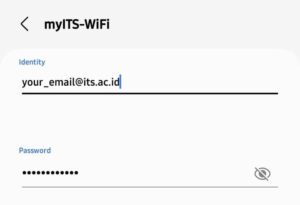
 3. Fill in the Identity column with ITS email in the format
[email_anda]
@its.ac.id and fill in the Password column using your myITS password.
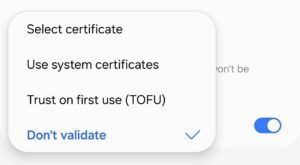
 4. In CA Certificate, select Don't validate option.
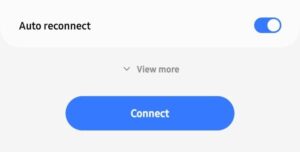
 5. Activate the Auto reconnect slider. Then, select the Connect button.
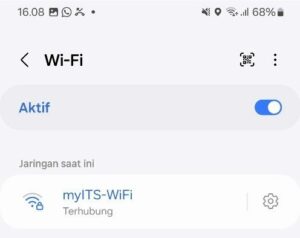
 6. If the myITS-WiFi status is Connected, then the internet connection on your device is connected.
1. Turn on Wi-Fi on your iPhone/iPad device.
2. Select myITS-WiFi SSID.
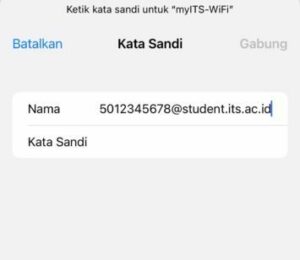
 3. Fill in the Username column with ITS email in the format
[email_anda]
@its.ac.id and fill in the Password column using your myITS password. Then, click Join.
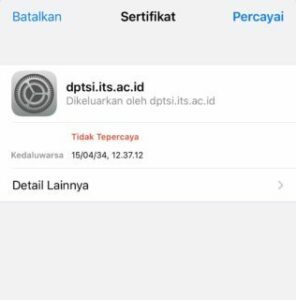
 4. A certificate confirmation window will appear, select Trust.
 5. If there is a blue tick on the myITS-WiFi SSID, then the internet connection on your device is connected.

1. Select the WiFi icon in the icon tray and make sure your WiFi device is on.
2. Select myITS-WiFi SSID, click Connect, and click the Connect button.
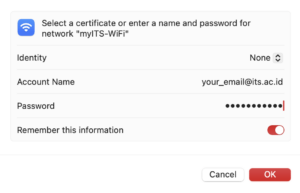
 3. Fill in the Account Name column with your ITS email in the format
[email_anda]
@its.ac.id, and fill the Password column using your myITS Password. Select Remember this information. Then, click OK.
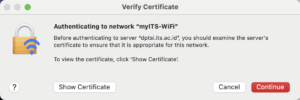
 4. A certificate confirmation window will appear, select Continue.
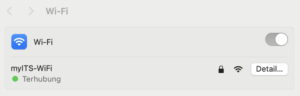
 5. If the myITS-WiFi status is Connected, then the internet connection on your device is connected.
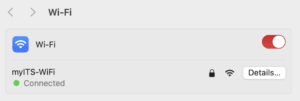
1. Pilih ikon WiFi yang berada di tray ikon dan pastikan perangkat WiFi Anda menyala.
2. Cari SSID myITS-WiFi, dan klik tombol Connect.
 3. Isi kolom Username/Nama Pengguna dengan email ITS yang berformat
[email_anda]
@its.ac.id (contoh: email_anda@its.ac.id) dan isi kolom Password/Kata Sandi menggunakan kata sandi myITS Anda. Lalu klik OKE.
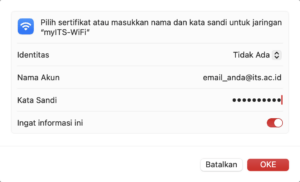 4. Akan muncul jendela konfirmasi sertifikat, pilih Lanjutkan.
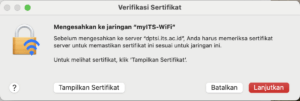 5. Jika terdapat centang biru pada SSID myITS-WiFi, maka koneksi internet di perangkat Anda sudah terhubung.
Panduan Akses eduroam
Untuk mengakses internet menggunakan eduroam, Anda dapat memilih SSID eduroam dan melakukan langkah-langkah yang sama pada Panduan Akses myITS-WiFi.
Kendala yang mungkin terjadi
Q: Saya sudah memasukkan email dan password myITS saya dengan benar, tetapi tidak bisa melakukan autentikasi. Apa yang harus saya lakukan?
A: Anda dapat melakukan langkah-langkah berikut:
- Pastikan email dan password myITS yang digunakan sudah benar.
- Pastikan primary email/email utama di Portal myITS (Menu Kelola Akun) sudah terverifikasi/verified. Jika belum, silahkan menghubungi servicedesk.its.ac.id.
- Pastikan Anda bisa mengakses Portal Office 365 di dashboard Portal myITS, lakukan login menggunakan email dan password myITS Anda. Jika tidak bisa login, lakukan pembaruan kata sandi myITS Anda lewat menu Kelola Akun di Portal myITS. Tunggu sinkronisasi selama 5-10 menit. Kemudian coba lakukan autentikasi myITS-WiFi kembali.
- Pilih SSID myITS-WiFi/eduroam.
- Pilih Forget network/Lupakan jaringan.
- Lakukan autentikasi ulang sesuai panduan.